Upgrade option 2 – Adding a dual-axis Trunnion Turntable is part of MachineMaker: Building a 3-Axis Milling Machine using CAD data. Sign in with your ENCY account to access lessons, assignments and progress tracking.
Sign inRead the full text version — the video itself requires sign-in.
So we are going to be expanding a bit further on building a CNC machine from CAD files operations that we did before with building this Haas VF2. and we're going to be adding a trunnion and turntable to this which opens up full 5-axis machining opportunities. Now we have the good fortune of being able to use CAD files directly from Haas on this so that's great. I'm not going to be going through the full process of using the Simplifier tool again because realistically this isn't going to be used in the production environment right now and I'm more interested in showing you how to apply.
and integrate the extra axes than I am in retreading the same old ground that we covered in the previous video set. So for now we're just going to import the raw CAD file. So I'm going to hover over Add Mechanism and click on Machine Equipment and I'm going to grab this TRT160 trunnion table and I'm going to click on OK. So once that's fully imported we obviously need to define the parameters for this and fortunately being a trunnion table it's actually fairly constrained parameters so it's quite easy to work with.
although it is a detailed model so there will be a little bit of fussiness involved and the first thing that we can see is it's currently in the incorrect orientation. so let's very quickly resolve that by rotating it in X by 90 degrees and we need to tell it how many axes it's going to be working with so we're going to use a template for this. Now by default it just assumes that the whole thing is just a base unit that doesn't do anything. This is obviously not the case.
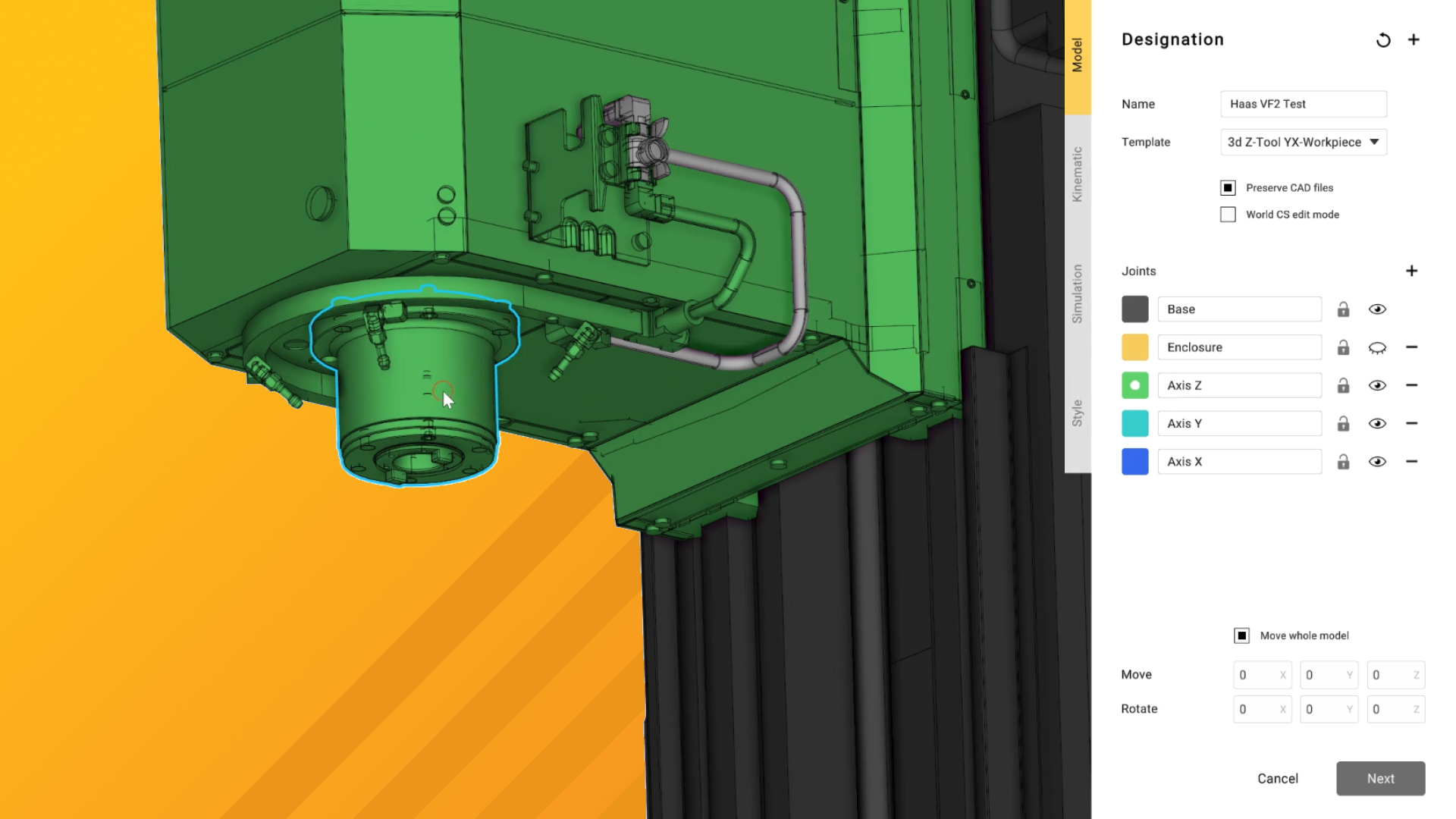
So we're going to click on templates and we're going to choose two rotary axes and we're going to start out by selecting the content of the first rotary axis which is this trunnion table here. and I'm going to highlight all of that in yellow again because I've not run The model is a little bit fussy. but it's not the end of the world. Now there are also some internal bits in this because Haas is very very comprehensive in their modeling so I'm going to render this joint invisible for the moment so we can see those internals and highlight them.
so they all move correctly and we don't end up with any weird hovering bolts or fixtures in midair when using this. Now as I say in an ideal world we would have run this through the simplifier and everything would be better but for now we're just doing this quickly. So I'm going to rename this axis into trunnion which is a very odd word if you think about it. I'm not entirely sure what the origin is but I've got to say it certainly sounds very English.
It's the kind of thing that people in the 1800s in flat caps designing machines would absolutely love to call things. And I'm now going to nominate the rotary axis which is our turntable and I'm just going to select all of the bits relevant to that. and we'll call that turntable as would be fitting. I'm going to very quickly tidy up the names on this because you know I don't need to know that it's a STEP file and when it's made I just need to know it's TRT160.
and we're going to list the brand as well and the last thing that we're going to do is we are going to move the base coordinate system on this because at the moment it's in a bit of an odd position. and instead of adding loads of coordinate system points to this we can actually make use of this one. So if we go into base CS edit mode and I am going to control click this and I'm going to move it to the center point of this slot here. because that is actually a very very convenient slot for being able to map the machine there we go and that nice bright orange curve there highlights it.
and that will allow us to map the machine quite nicely to the T slots on the table of the milling machine which is what we want. So I'm just going to revert that orientation because at the moment it's rotated by 180 degrees in Z which we don't actually want so I'm going to set that to zero and I'm now going to pull out of base coordinate system edit mode. and I'm going to click next so we enter the kinematics menu. Now we need to obviously set these bearing positions in this so let's very quickly do that so the trunnion bearing is going to want to be based around the center points of this axis here.
so I'm going to hold down control and move it and don't worry about everything else moving alongside it it's not the end of the world and that is now based on that center there you can see there was a small orange ring that came around. which again tells us it's a snap point and we want to set the limits on this so I am going to set this to minus 90 to positive 90. Obviously you want to check what your trunnion table is capable of with the data sheet from the manufacturer I'm just going with 90 and 90 because they're fairly obvious figures for this sort of thing. but again it's entirely down to what you've purchased and what you've got on your machine you obviously don't want to try and break your expensive five axis attachment just by shortcutting that.
I'm going to set the address on this to the B axis as well and that looks like that is pretty much good to go so we now need to work on assigning the turntable. and workpiece connectors so if I now move on to turntable in the kinematics tree we can see we've got the bearing here but that wants to be over here so again we hold down control and we grab it. and we move it until we get that nice orange ring indicating that it's at the center point of a bore which is the correct bore no less. I'm going to set this to unlimited because well I kind of hope it's an unlimited turntable again check your data sheet because otherwise you're going to have a really bad time programming with it you can set your values here as we have done previously.
and I'm going to set the address to the C axis and then finally we want to move our workpiece so it's at the center of this turntable at the correct height so we're going to control. and grab that and then move it so it looks like it's currently sat on the top surface pretty perfectly actually let's just snap the view around there and zoom in. and yeah I'm happy with that I think that looks good so I'm going to call that done for the moment. so we can now very quickly let's rename that.
so that's turntable would be helpful if I remembered how to use my keyboard properly workpiece okay. and I'm going to click on apply now. so we can now move into the simulation oh no it directly done to straight out of there again not the end of the world absolutely fine the first thing that we'd like to do though is we would like to move this. so it's under the direct control of the rest of the machine because otherwise when we assign a connector to it it won't track properly so I'm going to grab this and I am going to get it to nest inside the Haas VF2 there.
which is fine it's automatically defaulted to jumping onto the table center workpiece which isn't really ideal for our needs. so what we're going to do is we are going to fit another similarly placed coordinate system in the center of the middle T slot. although it's only going to be about probably a hundred mil in from the edge okay as opposed to being perfectly centered so to do this we go into the Haas VF2 here we double click on it. and we assign a fresh connector so we want the assembly equipment connector and we want to drag that and move it into x-axis there.
so it's now slave to that and we need to move it accordingly so as we can see it's the green one here that's highlighted so I'm going to hold down control again and drag it to where we need it to be. which is going to be this edge here now if you remember from the previous video in this the slots are 19. 05 millimeters across or three-quarters of an inch because it's American machine. so we're to move this into the center line by using our cheeky numerical trick again where we type in minus bracket one nine point oh five over two close brackets.
and that's now moved it to the middle we're going to do the same again over here to move it along in X by plus 100 and that brings it in nicely. and we are going to rename it as trunnion base trunnion mount actually let's let's make that nice and unambiguous so trunnion mount point and. then click on apply so now we want the trunnion to be based based on the trunnion mount point so let's move that down to there. and you can see how it's automatically just snapped straight to it it's aligned the base connector of the trunnion to the trunnion mount point without having to zero any of this out or make any edits okay.
so that pretty much sets that up as we need it to for now the next thing that we're going to want to do is we're going to want to make sure this definitely moves along the axis as it should and we want to check the ranges of motion on this. so we've got a couple of ways of doing this but the quickest and easiest is to click on the run simulation button so let's do so I'm going to just click on demo here. so I don't have to do anything further now we can see that the z-axis does intersect there that's not ideal we need to make sure the collision detection is turned on for that. but we can also see that the trunnion table tracks along with the table perfectly we'll also take a look at the motions of the trunnion table to make sure that the angular settings in there are correct.
so if we click on demo we can see that rolls largely according to what we'd expect and that rotates nicely and cleanly there's no weird offsets in there from not having the bearing centered. so I'm quite happy with that the only thing that we really need to change at this point is we want to make sure that this corresponds to the color scheme of the rest of the machine because you know let's make it look nice so to do. so we double click on the TRT 160 again and we go down to style and instead of having the 3d model colors we're going to choose gunmetal and we click on apply. and now everything matches nicely that looks like a single coherent nicely designed machine which is very much what we want to achieve with this obviously we've still got the assembly settings.
and all those parameters to go through at some point. but that is again something that's exclusive to the particular setup of your trunnion right here right now my main focus has been just to make sure that you know how to apply this new piece of hardware to your machine how to get the axes to work. together how to get it all to correspond to each other all of those settings are the kind of things that will be covered very very well by a manufacturer's documentation I hope this brief tutorial has been useful. and obviously if you have any questions about it please don't hesitate to reach out to us thank you for your time see you in the next video.