Sign in to watch this lesson

Upgrade option 1 – Adding a fourth axis is part of MachineMaker: Building a 3-Axis Milling Machine using CAD data. Sign in with your ENCY account to access lessons, assignments and progress tracking.

Sign in

Read the lesson

Read the full text version — the video itself requires sign-in.

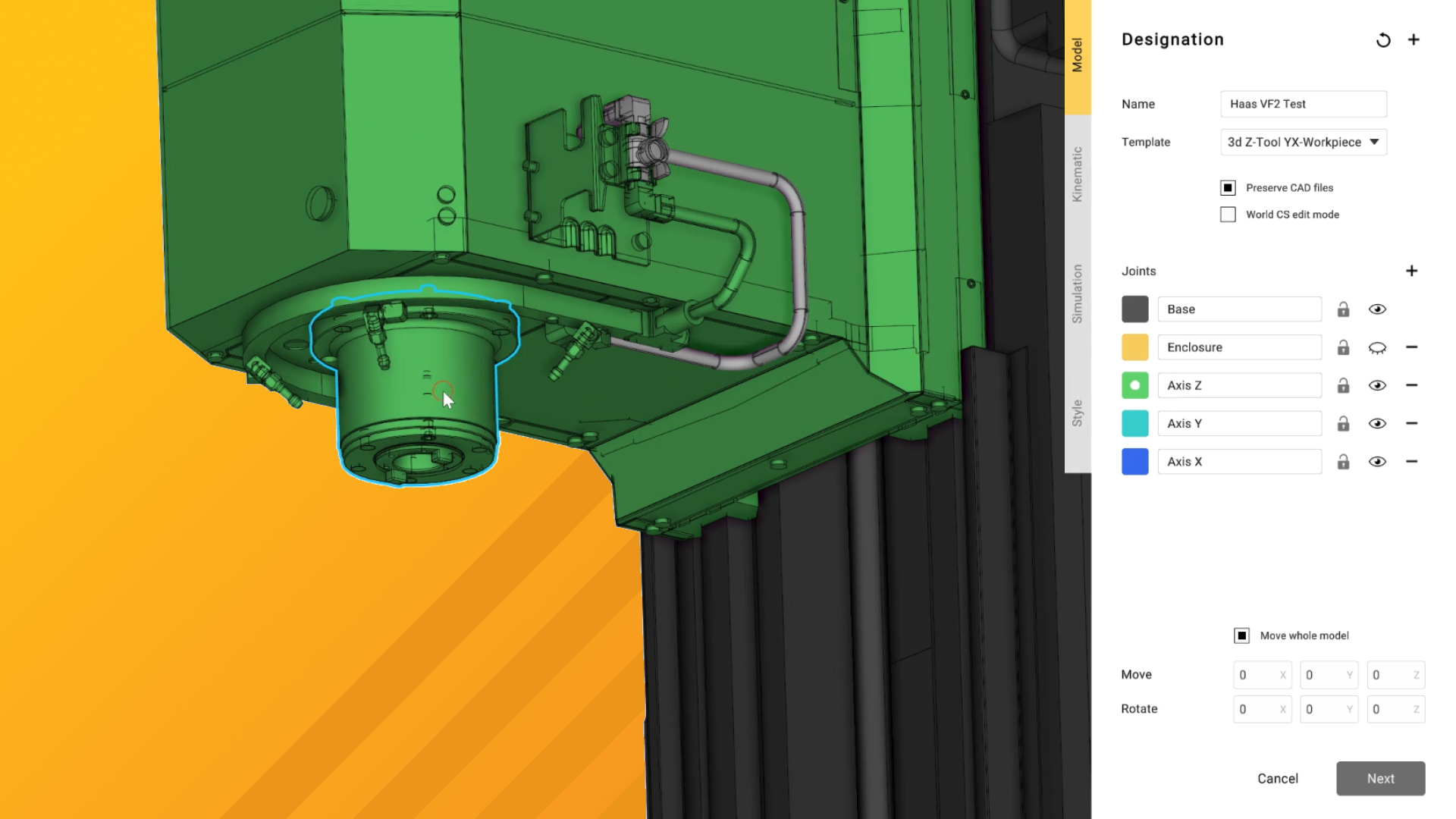
Hi there, so this video is a follow-on from the 3-axis machine definition video that we previously did to build this Haas VF2 machine. and as the title of the machine at the very top would suggest we are in fact going to be building this into a 4-axis machine. So we're going to be covering the principles of how to introduce extra machine equipment and extra axes into the kinematic structure of this machine for full seamless use within NCS self. and it's quite a simple procedure generally.

So the first thing that we're going to do is we are going to go to add mechanism and if we hover over it we have the option to add machine equipment. So I'm going to click on that and we are going to grab this HQDA5 STEP model which I downloaded from Haas's website. If we give it a second to import and load the very first thing that we're going to see here is Haas do tend to include every single possible option for work holding in their extraneous axes. so we're going to need to trim some stuff out.

But for now we are going to set the template as a one rotary axis setup. because it is a we are also going to rotate this 90 degrees in the x-axis because it's currently sat on its back and it needs to be sat on its base. So if we type in 90 down here and rotate and beyond that what we need to do is we need to deselect everything that's not actually going to be part of the base. So there's a few different work holding options here and as I say we don't really want all of them.

So what I'm going to do for the moment. and it's a little bit of a cheat okay I'm actually going to temporarily introduce an extra joint in here and we're going to highlight that and. then we're going to remove the joints afterwards. Now the reason for doing this is because we're just doing a very quick setup on this we could bring it into Simplifier we could go through all of the geometry and then run the simplification processes but part of these videos is to show you multiple ways of doing these things.

So for now I'm going to label this joint structure as temp and more importantly I'm going to set it to unseen or invisible. So we can now select things that are going to be in the temp category and as you can see they disappear once we've selected them. Now this makes our life a lot easier when it comes to removing things that we don't actually need to be part of our overall structure. So the next thing I'm going to do now is I'm going to select all of the bits that we want to have rotating as our fourth axis.

and now that I've got both of those I'm going to remove the temp category and we can see that all of these things come back now but in unselected array. That's fine for the moment okay we don't need to worry about that right now. As I say this is technically a little bit of a cheat but it's not the end of the world. The next thing that I'd like to do is I'd like to move the base CS.

So we're going to go to base CS edit mode over here and we can see now that our base coordinate system has been highlighted so I'm going to hold control to be able to grab it and move it. and I'm going to snap it to the center of that curvature there because that is the t-slot mounting point for it and I'm going to make sure that no rotations have been introduced into that coordinate system. which apparently they have. So down here we can see under rotate that we've got a value of 180 so I'm going to set that to zero and press return and then I'm going to click on next.

So we now have moved into our kinematics definition which is what happens when you click on next it automatically jumps into the next category. That's why the order in which we did those things was quite important because otherwise we'd have to keep jumping back and forth but for now we've reached the point that we need to. However we do have a slight issue and that slight issue if we just reset the view here is that the bearing for the rotary axis is currently in the wrong orientation. So we can set this by clicking on rotary axis here and we can rotate it in the x-axis which is the axis that is currently turned about by 90 degrees.

and we can see now that this is actually in the correct orientation and is exactly where we need it to be now. We just want to make sure that it's centered on that bore which it is but if at any point you're uncertain about that you can of course always hold down control and move it around. We apply that first we go back in here we go to rotary axis we can now hold control and snap it around. and make sure that it's based on the center of any rotational bore on this which it currently is.

It doesn't particularly matter whereabouts in this structure it is in terms of the relative position only that it's on the center line and that it's in the correct orientation because the entire structure will rotate around that. The next thing that we need to do is we want to give it the correct address name which in this case we're going to call it the A axis instead of R1 and we can either define it as being limited to minus 180. or plus 180 or we can set it as unlimited which if the rotary axis is capable of that tends to be preferential because it means you can do true spiral toolpaths so I'm going to turn that on. The last thing that we want to do is we want to set the workpiece position so I'm going to snap to the left side here and we can see that it's offset by a bit which is not really ideal.

so I'm going to grab the workpiece by holding control again and by moving it around until it snaps and you can see there's that faint orange right there that means that it's snapped to the center of that arc which is exactly. where we need it to be. So I'm now going to click on apply and that's pretty much good to go for the moment. The next thing that we need to do is we need to define the position to which it's anchored on the table of the mill.

Now again this is quite easy to do so if we go to the R3F2 here, double click on it, we can add a new connector and we can see we've already got one at the center of the X axis. but we want to add a fresh one here so I'm going to click on axis X and then plus on connectors and it's going to be for assembly equipment this time. Unfortunately it's not automatically jumped on to axis X but it's okay we can nest it there that's just fine and we're going to call this rotary mount. Now the next thing that we need to do is we need to define its position.

So to do so again we are going to grab it by holding down control and then moving it to roughly where we need it to be. Now I would like it to be centered on this T-slot and then moved in by 20mm. Now if you remember from the previous video these T-slots are 19. 55mm across so what we can do is we can move this down in Y by going into the coordinate system for Y here.

and minus bracket 19. 05 over 2 and then close bracket. and we can see it's just moved to the halfway point. We can also do the same thing in X by typing in plus 20 and it's now moved in to where we need it to be.

That's perfect that's exactly where we want it to be. So we now click on apply and the next thing that we need to do now is we are going to move this in the hierarchy tree so it's under the Haas VF2. so it's a part of it and we want to make sure it's attached to the rotary mount. Now we can see we do have an issue with the orientation of it right now which again it's minor.

What we can do is we can simply rotate it in Z by 90 degrees as you can see here by me scrolling the mouse wheel up that's what we've done and it's still perfectly aligned along the T-slot here. so the standard mounting will work just fine. And we can see now that we have got our fourth axis mounted pretty much where we want it to be. Looking at it now I of course am a little bit worried that of course we may have a slight issue where we've got this overhang that's going to potentially intrude on the column.

but that's not a problem we can always move the rotary mount points if we need to. So if we go back to double clicking on the Haas VF2 again and we go to. where it says rotary mount again we can move this in exactly the same way that we set it up before just by holding down control to grab it snapping it to that corner. and again minus brackets 19.

05 over 2 close brackets and then in X plus 20 and apply. And now we can see that it's automatically moved into the correct new position. So the next thing that we can do now just to make sure that everything is behaving exactly as we expect it to we can go into run simulation and of course the real acid test is going to come. when the table moves so let's see what happens.

So if we click on demo now got the Z column moving that's just fine and the table moves in Y and now it moves in X and we can see that the fourth axis system has moved in perfect tandem with that. And of course if we demonstrate the fourth axis system now we can see that it rotates exactly as we'd expect it to which means that when we import this into ENCY now we will have a fully configured. and fully functional fourth axis system. So I'm now going to close this and we can now click on the export scheme to ENCY button which if we give it a second should bring this in.

and we can see here how it's popped up and we're going to click on new tab. Okay so this is a video from a different project which you'll see in the not too distant and if we give it a second to load we should now have our Haas with a fourth axis set up. and ready to go in our machining environment. So if we just zoom out there we go.

We have our Haas VF2 with our HQDA5 fourth axis set up. I hope that's been useful to you and I shall see you in the next video take care.