Sign in to watch this lesson

Setting up the tool turret is part of MachineMaker: Building a Dual-Turret Lathe. Sign in with your ENCY account to access lessons, assignments and progress tracking.

Sign in

Read the lesson

Read the full text version — the video itself requires sign-in.

Oh there. So this may seem a little counterintuitive, but the first thing we need to do in this video is define the actual cutting tool blocks first, then the turret itself, and then the connection points between them. So to start, we are going to go to the mechanism tree and take a look at the cutting tool block definition here. So I am going to grab the cutting tool mill definition to start with.

So click on open for that, and we want to get these one at a time, and there is a slightly different method for adding subsequent ones, so we will go through that in a second. The first thing we need to do is make sure the type is correct. Now this is currently set to a lathe cutter, which is not what we are after, so I am going to click on milling tool for this instead, and we are going to zoom in. And we are going to make sure we are happy with the placement relative to the edge of the actual cutting tool block, and that seems good enough to me.

Now the next thing we need to do is define the tool point. So we try clicking on tool point, and it tells me that it needs to have its joints defined. So click on continue, go back to model, and now that we have got the base defined, we click on that. Now you notice that this time around when we click on tool point, there is no protest, so that is exactly what we need to see.

Now obviously this milling tool in particular is set pointing off at entirely the wrong angle because we are looking for a z-oriented tool in this instance, not one defined by the x-axis. So I am going to drag this one round. Interesting, hold down control and drag that until it snaps. So I am not 100% sure what happened there, but presumably there was some kind of weird mouse offset or whatever that carried through.

I am now also going to define the rotations as 0 and 0 so it points in the correct direction. Now that we have done this, I am going to save this as is by clicking on apply. Now we can see here that we have got the cutting tool block defined under the end effector templates. However, we do not do the same process to add the next one.

We are going to change it up slightly. We are going to click on add mechanism now, and we are going to add another cutting tool block. This time we are going to grab the lathe tool. Now we can do the lathe tool or the milling tool in any order; that is not the defining point of this.

It is the case that once one has been defined, you do not refine another; you need to tell it that there is a fresh one coming in. So that is what we are doing here. So we click on open, and we make sure that we are happy with the placement of this, and this can move backwards a little bit. So we can actually measure roughly how far backwards it needs to go if I can zoom in the correct direction.

So 8. 5 give or take. So 8. 5, and we can see that is not quite correct.

Because that was clearly done with a slight perspective mix-up. So let's try 7. 5; that is a bit more in line with what is expected. That seems to have married up nicely.

So we will leave that there; that is all good. We need to define the base of the cutting tool block here. And again, we need to define the tool point. So in the instance of a lathe tool, first we need to make sure that the orientation is correct, and then we want to snap this edge, which is ostensibly in line with the cutting edge, although you work out your tool offsets accordingly in ENCY, to the center point of this circle.

So hold down control and snap to there. And that is now our tool orientation for the lathe. So I am going to click on apply. And you can see now that we have defined both of these cutting tool blocks.

Now it would be better if we made a point of changing the name. So we do so by opening up the cutting tool block as I just did and double-clicking on the greyed-out name here. So we will type in milling tool and apply, and we will do the same again but slightly slower for the lathe tool. So double-click on the cutting tool block and double-click on the greyed-out name and click on.

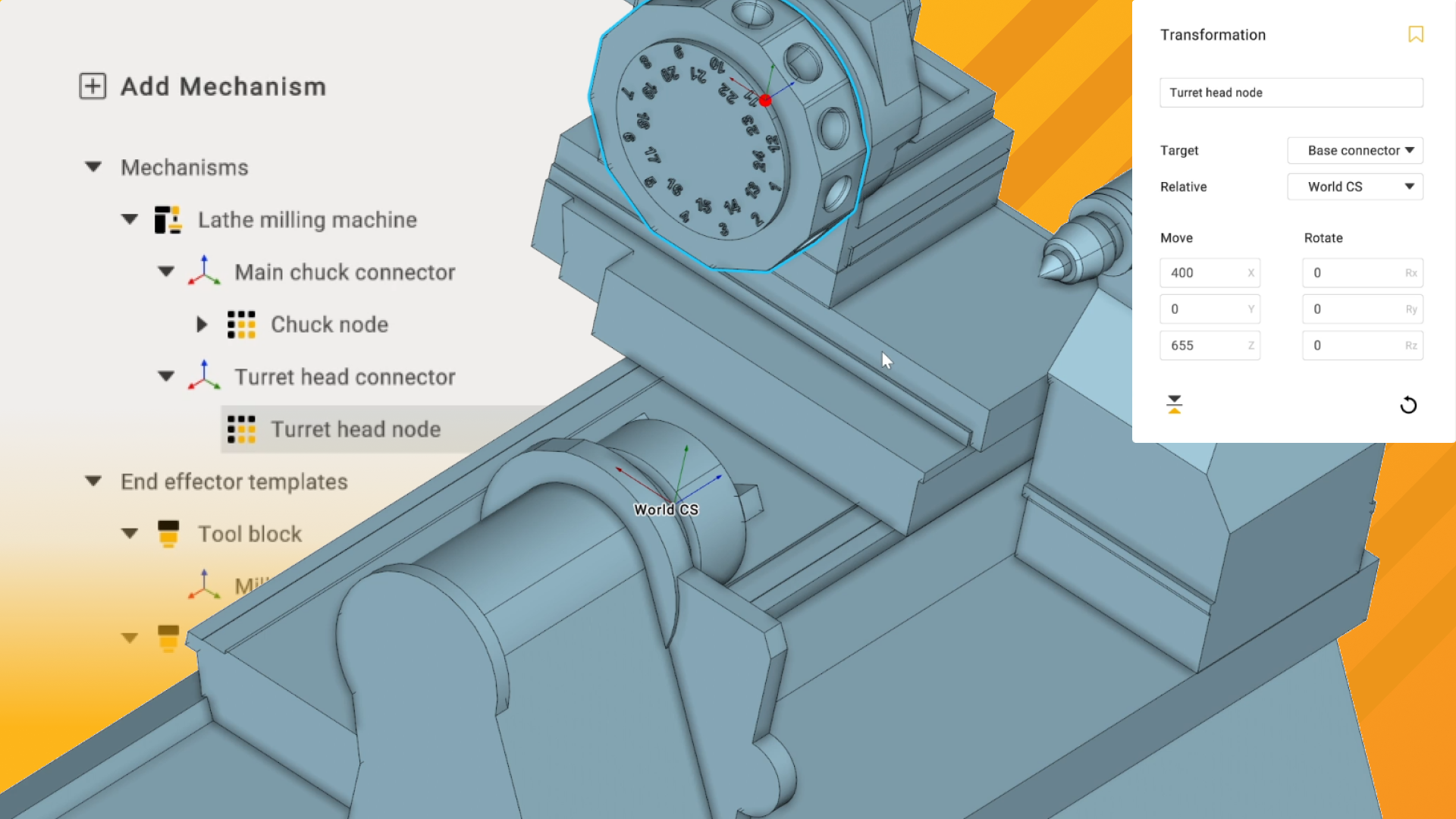
So now we are going to apply the new turret head. This is where things get a bit involved, so I am going to double-click on the turret head node, and we are going to grab the turrets. osd and click on open. Now we can see that is already attached to the correct place.

One thing that we do want to check as well is that it is in the correct orientation. We ideally want pocket 1 facing towards the centerline of the actual workpiece. So if we click on the navigation cube there, not sure why it has flipped around at us, we can see that pocket 1 is facing in the correct direction. If it weren't, however, we can rotate it around the appropriate axis, which in this case would be the z-axis here.

So I am now going to define the joint for the turret head by clicking on that, and we are now going to take a look at the kinematics of it, and we are just going to make sure it does exactly what we expect it to. So it's going to rotate in the correct direction, except is it? No, it's not; we need to invert the rotation on that. So click on invert direction, and we can see the arrow is now moving around the other way.

If we pan around and make sure that the bearing rotation point is in the correct spot, which it isn't; it's a bit far back. So let's grab that and snap it forward to where it should be. Again, you can see that snap coming into play in the center of that ring. Now the next thing we need to do is move these various positions into the correct place.

So we can either scroll down a bit here and go to additional parameters and put in the correct values here, or we can click on interactive mode, which allows us to grab the first of these and then move it to the correct spot. So again, we are making use of the snaps here to get it to snap to the center of that outer ring. Now I am quite happy with that placement there; that looks good to me. So we can now take a look at moving on to the cutting tool blocks information.

So we can see here that at the moment it's just showing us demonstrations of the milling tool blocks in place. I will be switching these off because they are going to start getting confusing in a second, and you'll see why after I've done so. So I'm going to set these to not selected just so we can see there's the points there because we don't really need the extra geometry confusing the visuals. Because after this, we are going to be adding the second row of tools.

So if we go back to kinematics now and turret head, we can now define rows. So I'm going to click on plus there to introduce row 2 into the mix. Now we're going to need to make a few changes to get it in the correct position. So I'm going to do so now.

We are going to set the offset angle initially because obviously, we can't have these points aligning perfectly with these because that's where our other tools are being mounted. So we need to offset it accordingly. Since we have 12 tools in each row, 360 divided by 12 is 30, so we need to move it halfway. So the offset angle is going to be 15.

The diameter at 234 is correct. The overhang we're going to tweak slightly to minus 105. And yes, this is going to be inset on the turret. That is not an error according to this particular design of turret.

This is a heavily simplified 3D representation of it, but it's accurate for this machine. Now we're going to go back to cutting tool blocks, and we are going to turn off the cutting tool blocks for here as well because again in a second, we're about to do something that is going to be visually confused by having a ton of cutting tool blocks in the way. We have however now seen that the cutting tool blocks mount into the places that we're happy with them being, which again pretty much serves our needs. That's ideal.

So first things first. We are going to go into position 1, and we are going to set the values for each of these axis attachment values. So we see in position 1 it's set to 0. Sorry, set here to 0.

Position 2 it's set to 1. Because we have got two rows of staggered tools, we're going to change that a bit so that row 1 is the even designations and row 2 is the odd designations due to the way the offsets here are defined. So we've got 1, 2, 3, 13, 14, 15. So for position 1, we're going to go back here and we're going to set that to 0, and we're going to set values for the next positions by a step of 2.

And then we'll click on the button here, and we can sanity check this by clicking on position 2. We can see that's defined as position number 2. Position 3 is pocket 4, 6, 8, 10, which is exactly what we're expecting. And we continue this scheme by going into row 2, and under position 13, we're going to turn this off, and we're going to set this to 1.

So remember the previous positions went from 0, 2, 4, 6, 8. We're going to set these ones to 1, 3, 5, 7. So the set values for the next positions by steps of 2 and click on the button. Now 14 is position 3, 15 is 5, 16 is 7.

This is exactly what we want. Sounds a little bit confusing on the face of it, I know, but it makes perfect sense once you see how these number representations of the tool pockets are laid out. So if 1 here is position 0, position 13, it makes sense as being 1. If block 2 here is 2, then this one would be 3.

3 is 4, 15 is 5. It does make sense. Anyway, we can now click on apply, and that has successfully set up the dual row tooling for this particular tool turret and in doing so, it means that we have now successfully set up our urn milling machine with live and static tooling in there in a 24 tool turret. Hopefully, this has been of use to you.

In the following series of videos about using MachineMaker, we'll also be taking a look at using the inbuilt mechanisms library, although that is more relevant to robotics than anything else at this point. See you in the next series. Take care.