Importing CAD Models is part of Importing models. Sign in with your ENCY account to access lessons, assignments and progress tracking.
Sign inRead the full text version — the video itself requires sign-in.
Hi there. So we're going to go quickly through the process of importing a pre-made model into ENCY. Now ENCY can support pretty much all of the standard CAD formats. For the sake of actual 3D parts though, we needed to either be something based on the Parasolid kernel or a surface model such as iGES or 3DM, or a mesh model.
Although obviously with mesh models you won't have the same degree of control that you get with more standardized CAD models. Obviously ENCY can also import 2D drawings such as DXF and DWG. But for the sake of what we're doing now, we're going to take a look at a 3D model. So next to the import button here, note that we're in the model space, not in the machining space as well.
There's a little drop down tab here which will open up the last of the most recent models that you've opened. I'm going to highlight 5AX indexed parts here and open this. And we can see it's opened up this fairly simplistic model in the middle of the work bed. So we're going to take a quick look at this and see if we're happy with the placement of it and if there's anything we need to do.
So we zoom in a bit and we can see already there's a problem in that the model is partially embedded in the actual work surface itself, which obviously isn't really ideal and isn't something that would actually be workable in the real world. So we need to resolve this. So what we're going to do is we are going to go into spatial transformations to move the entire model up and out of that work surface to start with. So we are presented with a new window here and we have got a series of standard options and tools available to us.
The first is move, then we have rotate, which rotates around the axis of each of these axes. Then we have scale with an inbuilt millimeter to inch and inch to millimeter scale factor, which is very, very useful. If, for example, you're in a country that predominantly works in metric, but you're importing imperial parts or vice versa. We also have mirroring tools.
Now, these are a little bit confusing to look at, but actually, once you play with them a little bit, they start to make a little bit more sense. But it is very much a case of actually see how it pertains to the part in question, because the part that I've got here has got very, very clear bilateral symmetry. It's not going to be immediately obvious how this works. So this isn't the best part for demonstrating this.
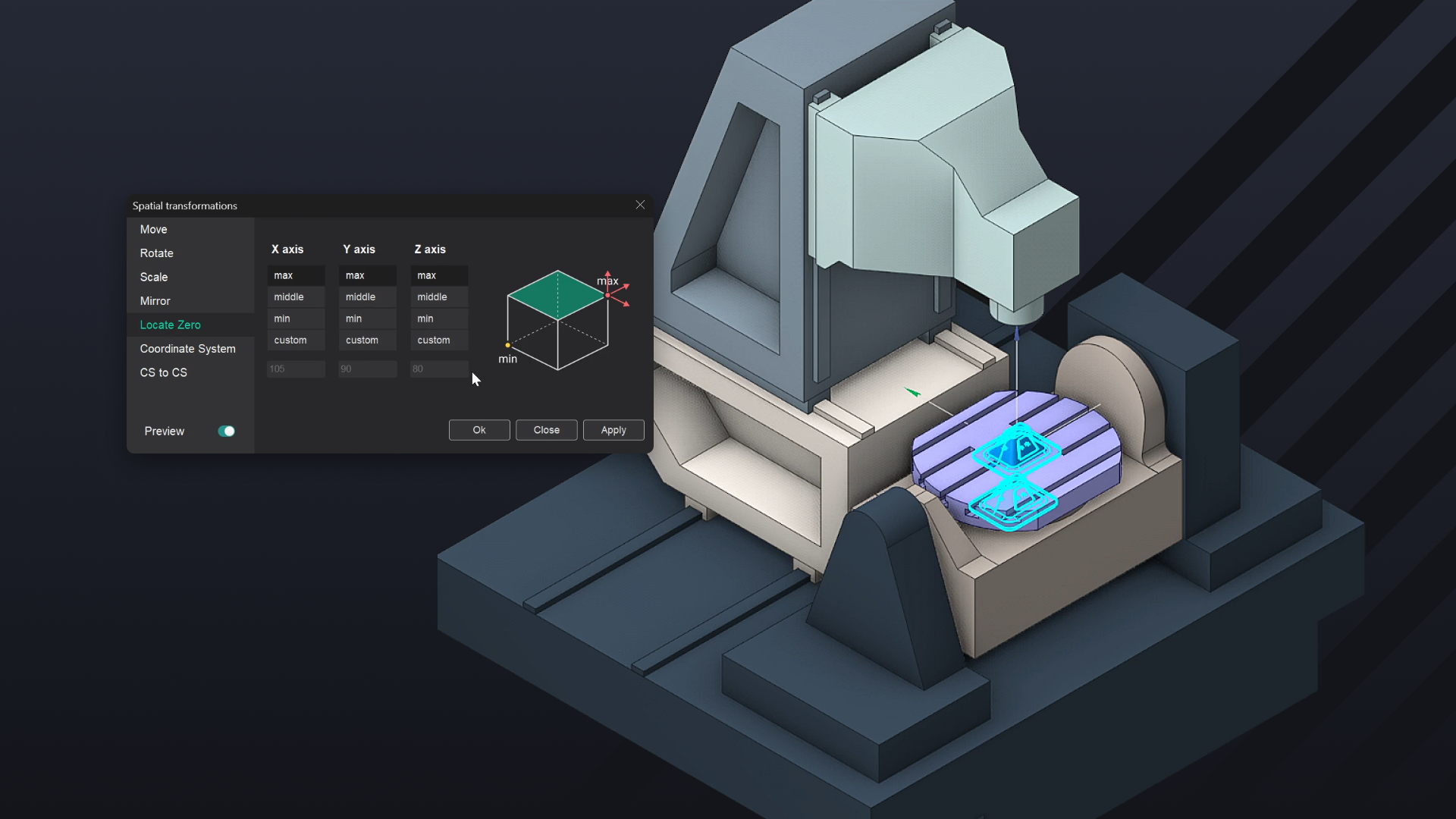
We also have locate zero, which is an incredibly useful tool. This is something that I use on pretty much everything that I import in ENCY. And in a second, I'll go through the process of this. Beyond this, we can also define what the coordinate system orientation is going to be for your actual part.
So if we pan through this, you can see how the parts moves in accordance with that. And that's in conformance with the world coordinate system. So the part is reoriented according to what you define as its coordinate system relative to the world coordinate system. You can also map external coordinate systems onto the part coordinate system as well, should you so wish.
This is just a slightly more complicated version of what we had before predicated more on planes and any other predefined coordinate system that you already have. It's the kind of thing that's very, very useful if you're importing multiple elements into a particular piece and you want overall uniformity of orientation and placement. So going back, we're going to start with locate zero. So as you can see here at the moment, it's set to the max point of all three axes.
So the zero is now defined as the topmost cubic points of the model. That's not what we're after, though. So I'm actually going to set this to middle, middle, and minimum. And as we can see here, this indicator has gone and moved to according to where the zero point is going to be on the model relative to the part now.
Now, I come from more of a robotic machining background where I'm machining large statuary pieces. And because that was typically done on a rotary positioning table, having the zero point as the center makes the most sense. However, the milling machinist background that I have as well is also telling me that actually, maybe it shouldn't be the middle. Maybe it should be in one of the corners.
So if we were to move this now to minimum, minimum, you can see how it's offset from the center of this table. Because it's a rotary table, again, obviously my previous example worked better. But for the sake of being able to set things up in accordance with a linear milling table and with fixtures as well, this is generally a very good standard to abide by. For something like this trunnion and turntable setup that we've got here, though, setting it to the centralized point is probably easier to work with overall.
So we'll redefine that and we'll click on Apply. Now, that's great, but it's gone and placed it right down onto the surface of the table, which isn't quite ideal for us. So we're now going to take a look at moving it up by 100 millimeters from the surface of the table, assuming it's on a very short tombstone fixture or something similar. So let's type in 100 and you can see how it's automatically going to move the part up in space as an illustration to show you what the preview of the final placement is going to be.
Because we have this preview switch turned on, something I always recommend having. There is a clear difference between the preview and the final parts. The preview is transparent, obviously, but it gives a good idea as to what's going on and what you can expect from this. So I click on Apply now and that's moved up appropriately.
Now, say I want to turn this 90 degrees to correspond to how the part is actually going to be placed in the chuck or the vice or whatever fixture system I'm using, be it tombstone, something with jaws, whatever. So we're going to rotate and I would like to rotate it around the center of the Z axis by 90 degrees. So an easy way to do this without committing to anything or having to undo anything is if you're not sure about the axial rotations you're working with, you can always use the mouse wheel to test it. So as you can see here, this is very much around the centerline of Z, which is what we want.
So I'm going to type in 90 now and we can see it's rotated. And this is why you always want to test something first. I typed in 90 and then return and the window closed. Always, always, always check what you're doing unless you really want to get tied up with having to undo things or go back or restart the entire process.
Okay. It's just good practice more than anything. We can, however, always reopen the Spatial Transformations window and provided we remember the number that we dealt with and the axis that we dealt with and we hadn't gotten ourselves all tied up and confused, you can always type in minus 90 to get back to where you were in this instance. Now, I'm not particularly interested in rescaling, but for the sake of argument, we can do this now.
So if we go with millimeter to inch, that should decrease by a factor of 25. 4. Whereas if we go inch to millimeter, that should increase by a factor of 25. 4.
So as we can see there, millimeter to inch has given us a tiny, tiny part there. And inch to millimeter has given us, well, a honking great huge part there, which I would fear anyone that has a machine large enough to accommodate that. However, if we stick with one to one, that's what we have. Now, we can adjust this scale accordingly.
So that's two to one, three to one, four, and vice versa. And you can also use fractional measures, decimal measures in here as well to imply fractional scaling. So if, for example, I wanted to put in 0. 5, you would get a half sized version instead.
However, we're not going to do that right now. So as I said before, with mirroring, it can become a little visually confusing purely because, especially with the part that's got absolute bilateral symmetry, sometimes with the more apparently rotational styles of mirroring, it becomes a little bit harder to see. But because we have got to move the part in space as well, it uses, at the moment, the axis zero points to define where that mirror is going to be. And as you can see, we have got perfect mirroring there in X and Y because, again, that bilateral symmetry, we can't really tell.
But in Z, it's currently mirrored along the Z plane. And again, that bilateral symmetry is what's caught us. However, if we revert back to X and then go with a plane instead, and then XZ and YZ, we can see, again, that bilateral symmetry is what's making it impossible for us to tell at the moment. If it were an organic shape, it would be much, much easier to tell because things would be different.
There'd be chirality to it, which is left-handedness or right-handedness. So it would have some kind of visible difference there. It's something we can explore in later videos when we actually have to lay out parts and everything, and we want to make sure that we've got the best layout and orientation possible. For the moment, it's worth noting the tool is there, although, as I say, not the greatest demonstration thereof.
We've already gone through locate zero. The coordinate system, as illustrated before, is predicated entirely around the actual orientation of the part relative to the world coordinate system. And the CS2CS allows you to map that coordinate system to the part as well. So these are slightly more advanced tools for when you're dealing with multiple elements within a global coordinate system, and you want to make sure that everything is aligned and oriented relative to each other appropriately.
I hope this has managed to demystify some of the model import and management a little bit. When it comes to dealing with the other folders in this as well, this is something that we will explore in future projects. It does get progressively more detailed. As you have probably seen, or will probably see, in the three-axis milling project, the first milling project, we do make use of fixtures as well in this, and in future projects, we'll also make use of the workpiece and restriction folders as well.
Anyway, as I say, I hope that's helped you. Thank you.