Importing and rigging our OSD models is part of MachineMaker: Building a Dual-Turret Lathe. Sign in with your ENCY account to access lessons, assignments and progress tracking.
Sign inRead the full text version — the video itself requires sign-in.
Hi there, so in this series of videos we're going to be going through the process of setting up a mill turn machine using either the OSD file format, which is ENCY's internal CAD file format. In the prerequisite video we'll have gone through the differences in different file formats and different geometry acquisition methods for this process. So to start with we're going to import the necessary files and we're going to do so by clicking on add mechanism and lathe milling machine. As you can see here I've got the program set up to build a lathe milling machine as opposed to more frequently seen robotic milling cell or whatever.
I click on here and in this folder that we've got set up here I am going to grab the lathe base tailstock x-axis and z-axis and open those. and as we can see it's imported the bulk of the machine in one go so we're now going to assign the joints on this. We're going to stick with the ZX turrets and B tailstock template because that one works for this machine quite nicely so we'll define this as our base. We will define axis Z and axis X and the tailstock accordingly.
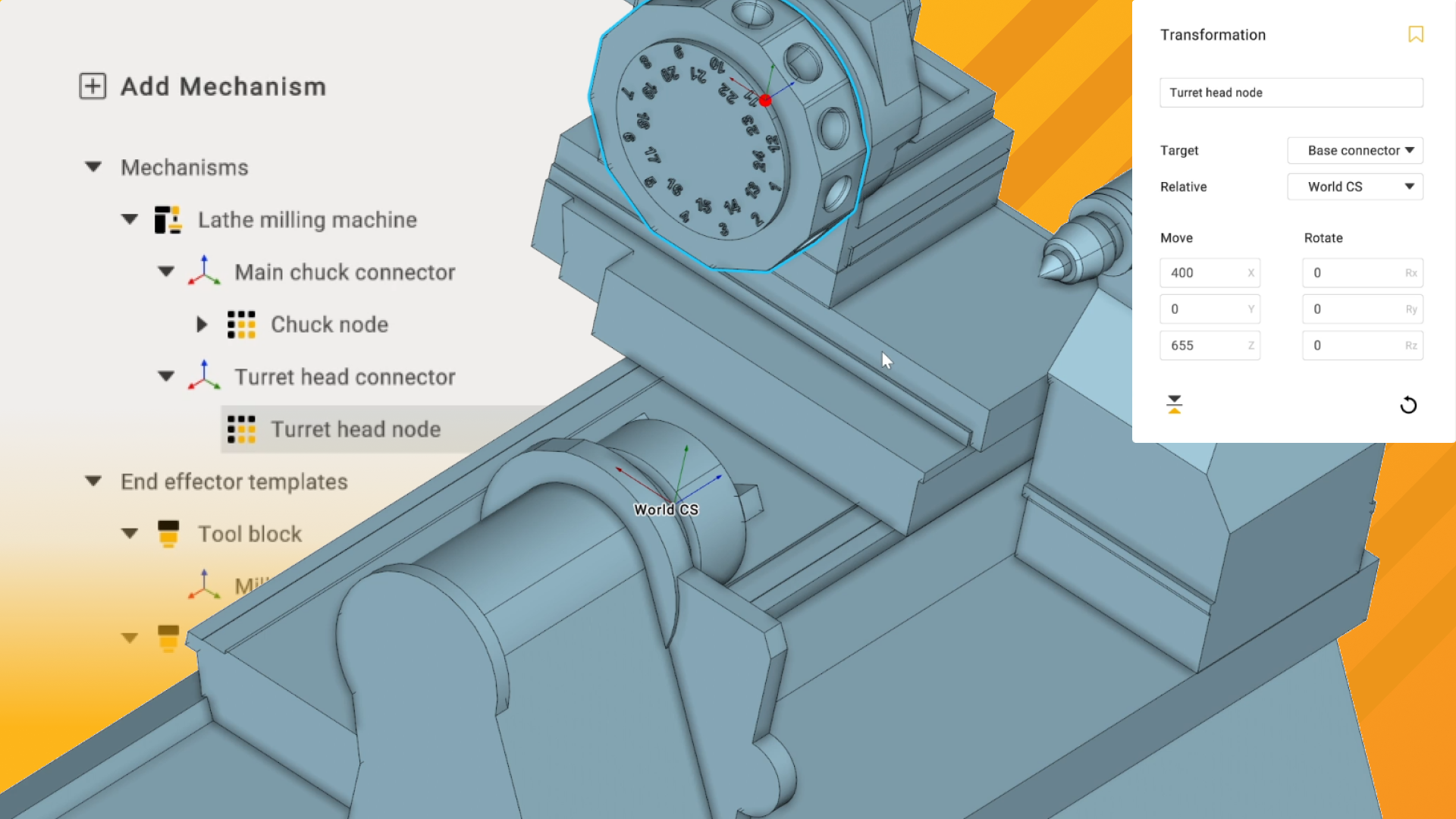
Now we'll go into the kinematics section and define the various axial limits as well as the connection points as well. It's important to do this now because otherwise you will have a much less fun time setting up the chuck and the tool turret. So we do this by holding down control and selecting the base of the chuck there for example and we can see how we get a slight orange highlight there. which defines the edge that it's trying to anchor to.
So we want it here and that means that our lathe chuck is in the correct place and for the tool turret we're going to do the same so hold down control, grab that. and again we want that orange highlight to be at the outer arc of the cylinder that we're centralizing this on. So those are now defined which is great and we are now going to define the travel ranges for each of these axes. So to do so I'm going to click on axis Z here and the limits are what we're going to be defining.
So this for example we're not going to be having it running a meter off beyond the end of the bed so I'm going to set the maximum to zero and I'm going to set the minimum to I think it's about minus 700 that one. which is a little bit much but let's go with minus 600 just to be safe. Yeah okay and we're going to do the same for the x-axis. Notice how I'm not clicking apply here because that will close this tab and we'd have to reopen it and go through all this again.
So the x-axis this will only travel minus 150 and positive zero because it's currently in the zero position. and the tailstock will travel minus 600 to zero. Now that we've defined all those we can quickly check in the simulation that we're happy with those ranges of motion. So that seems pretty good to me so far we can probably afford to let the turret move further forward judging by the length of the rails but 600 will suffice for now.
In the next video we're going to take a look at how to include and set up a three jaw chuck for this machine including defining. and limiting the range of motion for the chuck jaws as well. So I shall see you then.