Sign in to watch this lesson

Importing and creating Tool Holders is part of Importing and creating Tool Holders. Sign in with your ENCY account to access lessons, assignments and progress tracking.

Sign in

Read the lesson

Read the full text version — the video itself requires sign-in.

Hi there. So I get asked semi-frequently about how to set up cutting tool holders in ENCY since obviously with our advanced collision detection methods it's quite important that we be able to see where they are and what sort of size they are in relation to our tool. and the piece that we're machining. So this video is going to be about how to define your own cutting tool holders and import them and make use of them in operations.

So it's a very very easy process and there's a few different ways of doing it. There's I would say probably two really quick ways. One moderately fast way and one way that is slower, bit harder, but very very useful if all you've got is just number data about the cutting tool holder itself. And we'll go through all of these now.

So first things first you need to have an operation in place to be able to define a cutting tool holder since it's obviously associated with the tooling of the project. So we are going to add an operation now. It doesn't matter what this is purely just for the sake of the demonstration. And I've added the operation and as you can see in the tool window here we've got all of our standard information about a cutting tool and then we have the holder area which is currently empty.

Which let's be honest that's a little bit sad isn't it. So let's do something about this. Now the most important place when it comes to importing cutting tools and cutting tool holders that you need to look at is under holder geometry here. So let's just bring this out a little bit so the text fully shows.

So holder geometry file specifically. Now if I click here we've got the three dots option which allows us to explore further options. So if I click on that we now are presented with this new window. Now up here and unfortunately it's not very clear due to the color scheme on this machine.

We have a search bar to allow you to go through a longer catalog if you happen to have a lot of different cutting tool holders here. But we can also click to add a 3d model. So I'm going to click to add and ordinarily this will accept OSD and STL files and that's it. Now that's fine if you have an OSD or an STL.

I would generally recommend using OSD files because they're ENCY's internal file formats and generally they're much much geometrically lighter to use. STLs if you don't know the source 100% or you've not had any direct control over the source then they can be very very heavy in terms of geometric data which you know you want to try and keep things as light as possible. But that's one way of doing it. So we have our default.

osd so if I click open on that it brings up what appears to be a bt-30 cutting tool holder with that looks like er32 collet nut on it give or take judging by the size with a 20 millimeter extension which ironically enough is exactly what I'm about to show you how to construct as well. So it's nice operating with the most basic and generic of cutting tool holders. Anyway that's currently in place it's now using that that standardized OSD there. So that's one method of how to do this.

So I am now going to make sure that that's empty again by clicking on holder here and clicking on empty. Obviously if you have already saved these cutting tool holders and you have them in your catalog you can just click on the drop-down menu here and select one of the standards. These are ones that are currently in the typical selections and we'll go into how to define those shortly. But for now we're going to focus on the import and setup of the models instead.

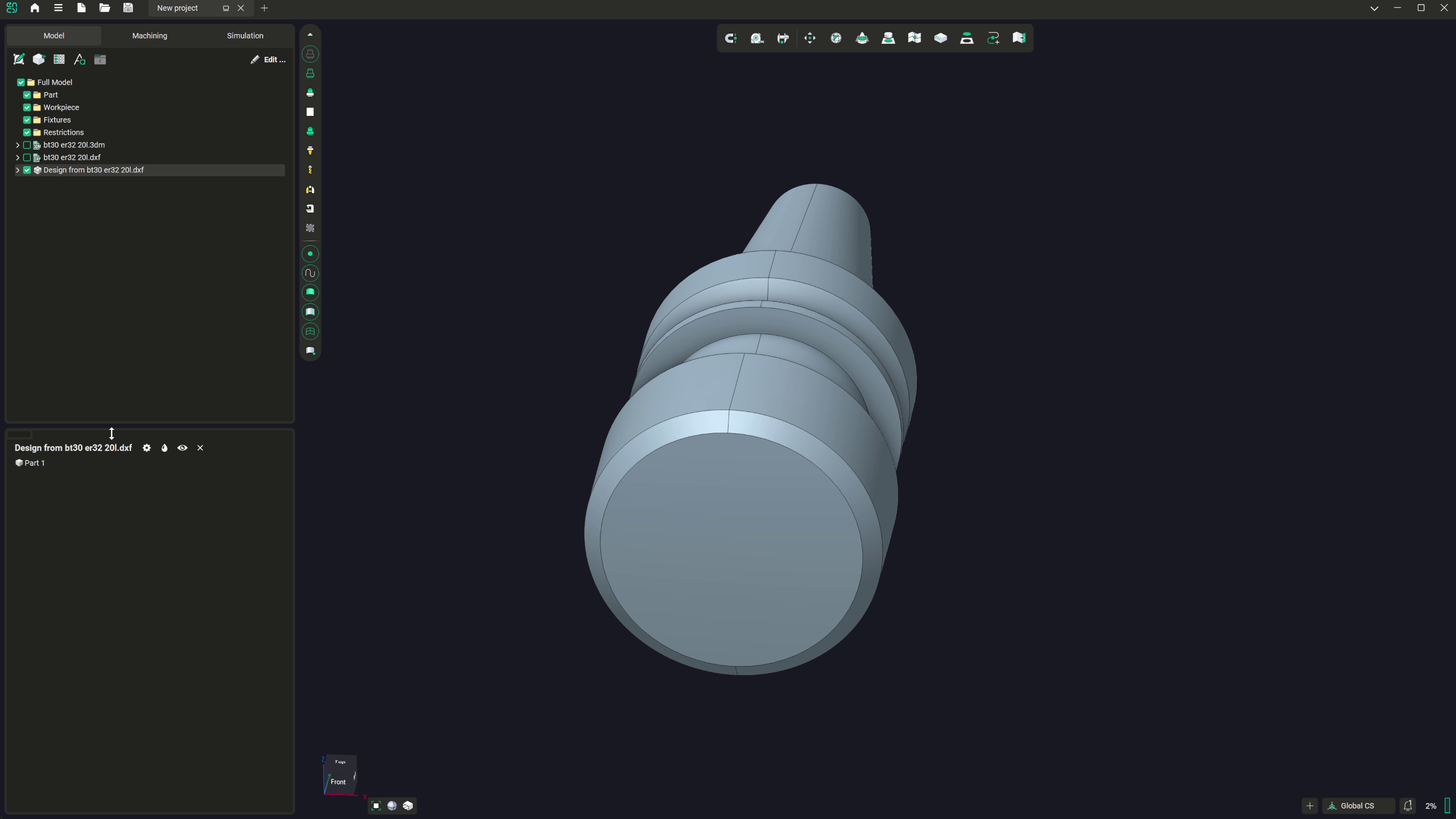
So we're going to go over to the model space and we are going to import a 3d file which is this one here. So I've got this bt-30 er32 20l model which means it has a 20 millimeter extension for the er32 nut as any machinist out there will know. And we need to make a couple of changes to this before we can use it. So first things first we want to rotate this so it's in the correct orientation.

So I'm going to click on spatial transformations and we're going to rotate it about the x axis by 90 degrees and then click on apply. We're going to close that. Now if we want to set this so we've got a section plane so we can see where our XY zero point is and as we can see it's in line with this flange here which is not exactly ideal. What we want is we want it to be in line with this step which should be two millimeters.

That's because the spindle nose does not touch on this flange. Okay so we are going to turn off our section plane now and we're going to go back to spatial transformations and we're going to move this to minus 2 in z and then click on apply. Now if we turn the section plane back on we can see that these arrows are now in line with this edge which is exactly what we want. So that's absolutely fine.

You'd think there'd be a bit more of an elaborate process after this point and what happens next is silent so don't be distressed if nothing apparently changes. But what we want to do is we want to go into the root folder that the model is actually in and because it's in the root we just click on that up here and we want to right-click on the 3d model and we want to save as a cutting tool holder. Now you won't see anything happen okay as I say nothing to be worried about. If we go into the machining environment now and we go into the holder space and we click on hold the geometry file and then click on the three dots in this window now we can see we now have a BT 30 ER 32 20 L dot OSD which is the converted version of our model.

Okay we also have a copy of the model in its own presentation here as well because obviously we imported a model and ENCY believes that it's initially going to be a workpiece but we'll be deleting it in a second. and just retaining the OSD. So if we click on the OSD now we can see when we zoom out that lo and behold that OSD has now become defined as our cutting tool holder which is very much what we needed to be so that's great. Anyway there is now another method that we're going to look at so first things first we are going to define the holder as empty instead to clear that data.

We're going to go back to the model space and we're going to switch this off because we don't need it to be visible right now and we're going to import the DXF file. So again this can be drawn inside ENCY's own CAD system but for the sake of expedience I've already drawn it as a DXF and we're going to do it like this. So I'm going to click on import I'm going to grab the DXF which is the same holder geometry it's it's the same holder and we are now going to revolve this using ENCY's own design module and we're then going to set this up as a cutting tool holder instead. So we're going to right click on this and we're going to convert to design and that brings us into our design space here which is great.

Now we're going to click on parts and we're going to click on revolve and we're going to click on the axis and we will define the axis we want it to be revolved around which is the y-axis and then we need to select the profile which is here. Unfortunately we need to do this in the proper order because it is sensitive to that so I'm going to go back through the undo chain there and I'm going to redo that. As you can probably tell this is not a design paradigm that I'm entirely used to. I tend to work in freeform 3d modelers instead but I do understand that that's very much a failing on my part not on the design modules part.

So now that we've got our sketch selected we're going to click on revolve we're going to select the profile and then we're going to select the axis because as I say it is sensitive to the order of operations and I do like to show you how it looks when things go wrong as well because I do get stuff wrong quite frequently and now that we've done that I'm quite happy with how that's worked so we are now going to click on back because that brings us now back into the model space. I'm going to rename this so we've got a distinct name so I'll right click click on properties and then say let's go with 2d bt 30 er 32 20 20l and then okay. We now need to do the same spatial manipulations that we did before where we rotate so let's rotate this 90 degrees in X and apply and if we go to the front view and zoom out a bit we can see that that same origin error has come into play so let's move that minus 2 and click on apply. Oh no sorry I do apologize I rotated that because I wasn't paying attention so now minus 2 and apply and again this is a perfect illustration of how it's very very easy to get tied up in what you think you're doing versus what you're actually doing but none of these things are irredeemable okay so there's never any cause to panic when it comes to working with stuff like this in ENCY.

So now we can right-click on this and we can sorry no if we go into the full model space and then we right-click and we can save it as a tool holder. Again mistake on my part. So if we now go into the machining environments and we can still see we've got the part here and this is slightly rotated version because you can see that offset in the vertical ISO line in the model there and if we go to the holder geometry file and click on the three dots we now have our 2d BT 30 or 32 20 L and we can click on this and if we zoom out we can see that that's now been defined as our model. Again great so those are the three ways of dealing with imported CAD data be it 3d or 2d.

We now have our last method which is as I say the lengthier method and one that does require a bit more thinking. So I'm going to scrub this now go back to this being empty and we are actually going to have to go into the tool menu to do this so we need to go into holder and we need to go into dimensions so the way to achieve this is by we can either start typing into here directly or we can go into dimensions yeah that's it or we can click on the three dots in holder and we can then define our own one so BT 30 ER 32 20 L DIY actually no let's be aware of if you are putting in the dimensions manually one everything is based on knowing the diameter and the length of each section of it to those lengths are not absolute values they are relative values so it's done based on how far it is from the previous point and three the construction of this comes from the end of the cutting tool not from the end of the spindle okay so that does mean that you will have to reorder your data accordingly okay now I have got a list with me of the actual point data for generating this cutting tool holder so let's very very quickly type that in and there's about there's about 15 rows of take me a second so 44 0 50 I won't read out each of these to you because that'll take a while but you can see the construction coming together now as I okay so that is all of the coordinate data to describe the holder overall you also need to define the connection points which in this case is at the bottom of this table is defined here so that length value of 48. 4 brings the point all the way to the top here so we want to set our connection point at 48 point force it brings that back down to here okay and in doing so we have now just gone and built our cutting tool holder from scratch using nothing more than length and width data so if we now click on the select holder we can see that's just been freshly imported and we are now using the holder named DIY BT 30 or 20 so on and so forth those are the methods for being able to bring in and define your own tool holding using ENCY.