Defining Kinematics and Workpiece Coordinate Systems is part of MachineMaker: Building a 3-Axis Milling Machine using CAD data. Sign in with your ENCY account to access lessons, assignments and progress tracking.
Sign inRead the full text version — the video itself requires sign-in.
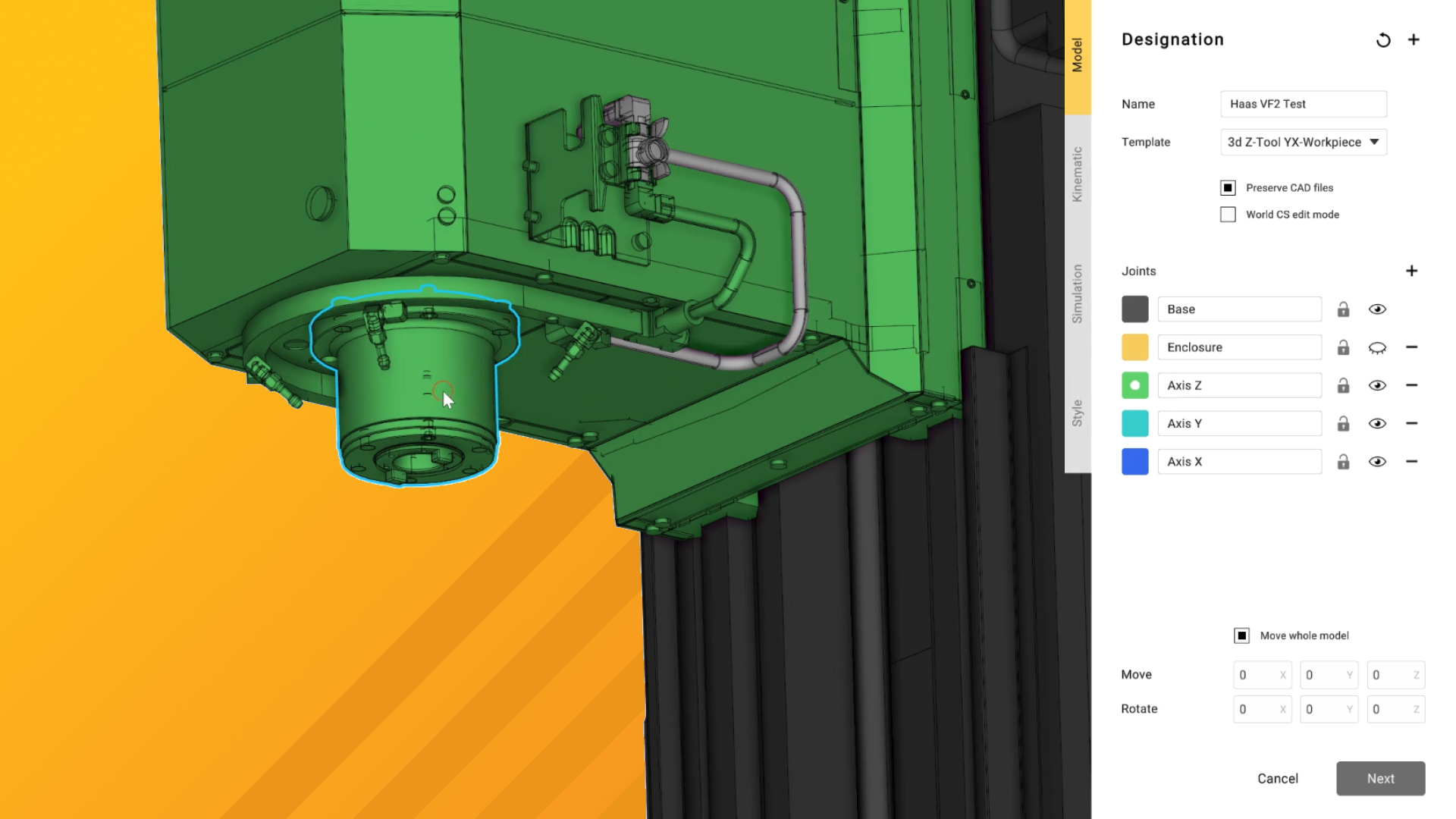
Hi there, so in this video we are now going to start setting up the ranges of motion and the kinematics of this particular model. The first thing that I'd like to do is give it a name that's slightly less generic than the word geometry. So we're going to go with Haas VF2 test and we're going to choose a different template by mistake. We're going to have a quick look through these options and we're going to go with 3DZTool YX Workpiece.
This is a pretty standard configuration for a CNC mill, at least the kind that uses the sliding bed and the sliding z-axis configuration. We do obviously have different methods for being able to do that as well, but in this instance it fits the best. So by selecting this, you'll notice the joints have suddenly dropped off in number a bit. This is because we've gone and eliminated all of the redundant and unnecessary alternative options.
So now we can start defining what joints and what aspects are relevant to our machine. And I'm going to go slightly out of order in this one. I'm actually going to select the enclosure first and you'll see why in a second. So I click on the color here and I'm going to start clicking on various parts of the model that are going to make up the enclosure elements.
Let's not forget the doors and we'll grab that last electrical cabinet. So that looks pretty good to me so far. Now the reason that I wanted to select the enclosure first is because this now gives us the opportunity to hide the enclosure. In doing so, it means that we've got much, much easier access to all of the different axes and all of the different bits that we're going to need to select to define the actual motion of the machine now, as opposed to having to peek through windows and pan around all the time.
So I'm going to turn this off and we can see there's a couple of little bits of floaters in the geometry because the CAD model, although very good, isn't quite perfect. So I'm also going to, whilst I've got the enclosure range selected, I'm going to grab and highlight these and just hide them. So they're now part of the enclosure. Realistically these pieces of the model were always part of the enclosure anyway, they just weren't grouped quite perfectly.
So now we are going to take a look at defining the base of the model. Now this is best described as the stand that doesn't move, you know, the castings that don't go anywhere. So I'm going to grab the base and the column and I'm also going to grab the feet because well if your feet start wandering off halfway through a job on a machine, then you've got bigger problems. So we've now got that and the next thing I'm going to define is the Z axis.
So again, rinse and repeat, we'll go through all of this. We'll get all of the bits that are relevant to the Z axis, including these little flood coolant pipes and everything. Just take a very quick look around to make sure there's nothing that's been missed. Now the next axis we're going to go for is Y.
And the reason that these are being apparently listed in reverse is because it's based on order of motion precedence. So the X axis functions as a child to the Y axis in this because when the Y axis moves the X axis kind of has to, you know. So we are going to grab that and we're also going to grab this ball screw here as well because we want that moving with us. And then finally, we are going to grab the X axis now.
So with that, we've gone and defined all of the different joints that are available within this machine. So the next thing we need to do is we are going to take a look at the kinematics options. We can either click up here or we can click on next. So I'm going to click on next.
And we can see that we've got the kinematic order of precedence that I was describing before. So we've got the tool being predicated on the position of Z and we've got the workpiece being based on X and X being based on Y. So the first thing we're going to look at is we're going to look at Z and we are going to define the limits of motion here according to the information given to us by the manufacturer. So the limits on this and it's also worth noting that the position of each of the axes is kind of important in the CAD model.
So it's best if you can get a model where everything's been moved into the correct home position or to an axial limit. If it's partway through, you're going to kind of need indicators to be able to work out where you are relevant to the machine and it gets a lot more complicated. With some machines, you can use things like limit switches to be able to define that cleanly and you can then reset what the home position is going to be. But it starts to get fussy.
So it's good if you've got a model set up like this. So the axis limits for this are minus 508 to zero. There we go. So we can see now how these blue squares define the ranges of motion for this axis.
For Y, we have got minus 406 to zero. Yep, and that's already pre-inverted so we can see that the inversion defines which face of the actual axis carriage counts as the zero point. So if we click on invert now, you can see how the zero face becomes the back instead of the front, which is not really what we need at this stage. And finally, we're going to define the X range of motion, which is minus 762 and zero.
So we've got all of the axis limits defined properly. I just want to check where the tool center point is defined as well, because it's always, always good to check that and it looks a little bit off based on this. So let's click on that. And as we can see, it doesn't really bear a lot of relation to the center point of the spindle here.
So we need to quickly change that. The easiest way to do this, we've got snapping automatically enabled within MachineMaker, which is super useful. And it's also quite intelligent snapping. So it will base its positioning on things like the center points of circles and arcs, as well as snap points on straight lines.
So to move this, we're going to hold down control and we're going to grab the tool. And we're going to move it around until we see an obvious snap point for the center of the spindle. And that would be it there. So I've released that now and you can see that the arc that was highlighted was this outer arc and this one out here as well.
This shows that it's actually at the lower face, which is ideal. So it's at the bottom edge of the flange there, which is what we want. So now that that's in place, we're going to take a look at the workpiece definition as well, because this is where it gets a little bit interesting. Now, obviously, where you define your workpiece is, it's a very personal kind of decision, let's be honest.
Putting it in the center of the table is very traditional, very workable. I also like to work from the bottom left as well. And I like to be able to set up my workpiece definitions based around the center point of the T-slots, because obviously when you're putting down large vices or whatever, you'll often have tenon keys in there to align it accordingly. And it's just a handy little reference.
So I'm going to rename this workpiece so we can differentiate between them. This one's going to be called Table Center. And being British, I make no apologies for using the English spelling of that, as opposed to the American. And we're going to add a new workpiece definition now.
And as I said, I'd like to base it on the center point of this T-slot now. So we're going to grab this by holding Control, and we're going to move it over. And we can see how it snaps to the upper corner there, which is what we need. But we want to get to the halfway point between these two.
So instead of best guessing it and playing around with coordinates and getting to the stage of tearing your hair out, we can use the Measure tool here. And we can grab that geometry corner and this geometry corner. And we can see that it's a 19. 05 millimeter T-slot, which is, if I remember correctly, three quarters of an inch.
And the best way of being able to move this workpiece coordinate into the center of that, instead of dividing 19. 05 by two in a calculator and then adding it to the coordinate value that we've got here and all that sort of noise, you can actually write math functions straight into the coordinate box. So here, I'm going to click on the Y channel, and I am going to type in plus bracket 19. 05 over two, close brackets.
And we can see now how it's just automatically snapped right into the middle there. Isn't that nice? So I'm going to click on Apply. And that's done now.
And that snaps us out of the machine editing view for the moment, which it's kind of useful for the here and now, because this is a natural breakpoint in the video. And I will see you in the next one, where we'll start defining other constraints available to us, as well as defining things like color schemes, and going through all of the finer details that can be applied relevant to your machine controller. So I'll see you then.