MachineMaker: Building a 3-Axis Milling Machine using CAD data

Got a new machine and need to get it set up for ENCY? Here's how.

5 lessons1 hrTier 314 languages
Sign in to enroll

About course

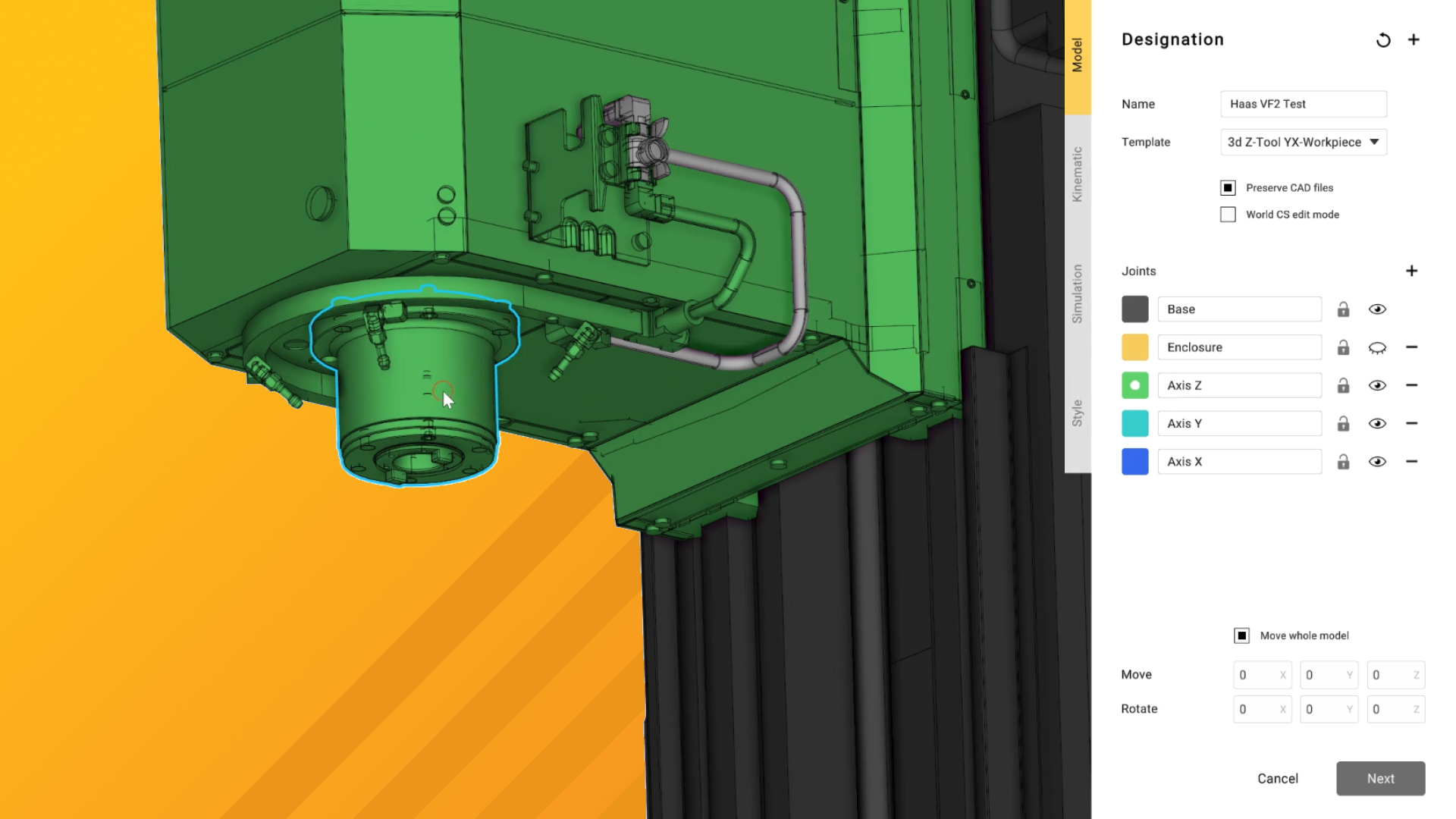
This course covers the details of building a 3-axis milling machine using CAD data as supplied by the manufacturer. These can be downloaded here and are provided free-of-charge by Haas.

Over the course of these videos, we will import the CAD models and prepare them for use in ENCY, apply kinematic constraints to the models for accurate motion, define the specifics of the machine controller capabilities and finally export the finished schema to ENCY.

We'll also expand out into incorporating extra axes - perfect for upgrade time in the workshop!

Author

Files

Gerry Grainger

No files available

You’re good to go—no downloads needed.

Gerry Grainger

Training content producer

Languages

العربيةDeutschEnglishEspañolFrançaisעבריתहिन्दीItaliano日本語한국어NederlandsPolskiPortuguês中文

Lessons

5 lessons to go

  1. 1Importing and optimising our CAD model, using the Simplifier toolImport a CAD model of a CNC machine using the Simplifier utility in MachineMaker. Prepare the model by removing unnecessary details and adjusting its orientation. Define the machine's operational settings and import it into MachineMaker for further kinematic setup and programming.Video lesson
  2. 2Defining Kinematics and Workpiece Coordinate SystemsSet up the kinematics and motion ranges for a CNC mill model by defining the enclosure, base, and axes. Establish axis limits based on manufacturer specifications and adjust the tool center point for accuracy. Create and position workpiece definitions using geometric references and mathematical functions for precise alignment.Video lesson
  3. 3Final checks, machine-specific tweaks, advanced features and ExportPrepare a 3-axis machine for operation by defining workpiece coordinate systems, home positions, and collision parameters. Adjust assembly settings, tool change positions, and simulation parameters to ensure proper functionality. Utilize the machine setup tab for temporary modifications without altering the permanent machine schema, allowing for flexible job setups.Video lesson
  4. 4Upgrade option 1 – Adding a fourth axisBuild a 4-axis machine by integrating additional equipment into the kinematic structure of a Haas VF2. This process includes adding a rotary axis, adjusting the coordinate system, and ensuring proper alignment and functionality within the simulation environment. Finalize the setup by exporting the configuration to ENCY for machining operations.Video lesson
  5. 5Upgrade option 2 – Adding a dual-axis Trunnion TurntableIntegrate a TRT160 trunnion table into a Haas VF2 CNC machine for full 5-axis machining. Define parameters, set rotary axes, and adjust the base coordinate system for accurate operation. Utilize simulation tools to verify motion and ensure proper alignment with existing machine components.Video lesson

Course discussion

Loading discussion…

0/6000